Rivalry
Summary of Deadlines
This assignment's practice questions on PrairieLearn are due by Tue, Sep 8 at 11:59pm.
Your solution to the project portion of this assignment is due to Gradescope by Mon, Sep 14 at 11:59 pm.
Presentations for this assignment will take place on Wed, Sep 16 and Thu, Sep 17.
Practice
This assignment features a number of practice questions available on PrairieLearn under the assignment called "HW1: Rivalry".
These questions will help you practice skills that are relevant to this assignment before you get started on the project. You must earn points on every question to receive full credit, although you are permitted to try each question as many times as you need. Some questions are static, meaning that they will not change when you retry them. Others have elements of random generation, meaning that you will get a new variant of the question on each attempt. As long as you earn points on one variant of a question, you get full credit for that question.
You are welcome to use whatever resources you want to complete these practice questions, but you should make sure you understand what you're doing. This is important for learning, and we'll also ask you to solve a variant of one of these questions as part of your Presentation in the final section of the project.
This assignment's practice questions on PrairieLearn are due by Tue, Sep 8 at 11:59pm.
Project
Navigate to HW1: Rivalry on Codio to get started.
Summary of Deliverables
By the end of HW01, here's what you'll need to submit to Gradescope:
rivalry.py(started for you on Codio)letter_viewer.py(started for you on Codio)line_drawing_tool.py(started for you on Codio)readme_rivalry.txt(started for you on Codio)- All image files used in
rivalry.py - Any additional files from the Extra Credit section
Getting Started
Goals
The general goal of this assignment is to write three Python programs which make use of loops and conditionals. The specific goals are to:
- Learn more about
PennDraw- Animation
- Mouse input
- Learn to read detailed program specifications and translate them into code
- Learn to declare, assign, and operate on variables
- Learn about loops and conditionals
- Learn how to simulate random behavior
All the necessary files for this assignment can be found on Codio, but if you'd like to download them separately they can be found here.
As always, you can reference the PennDraw resource here for reference to the functions you may need to use.
Background
This project contains three short programs you'll have to write. In the first part, you will write a program that responds to user key input; in the second, you will write a program that responds to the user's clicks on a canvas; in the third, you will write a simple animation.
Program 1: Letter Viewer
Write a program that displays the most recently pressed key in the center of the screen. You can find the starter file in your Codio, called letter_viewer.py.
The canvas should be blank until the first key is pressed. Then, the most recent character pressed should remain on the screen until the next character is pressed.
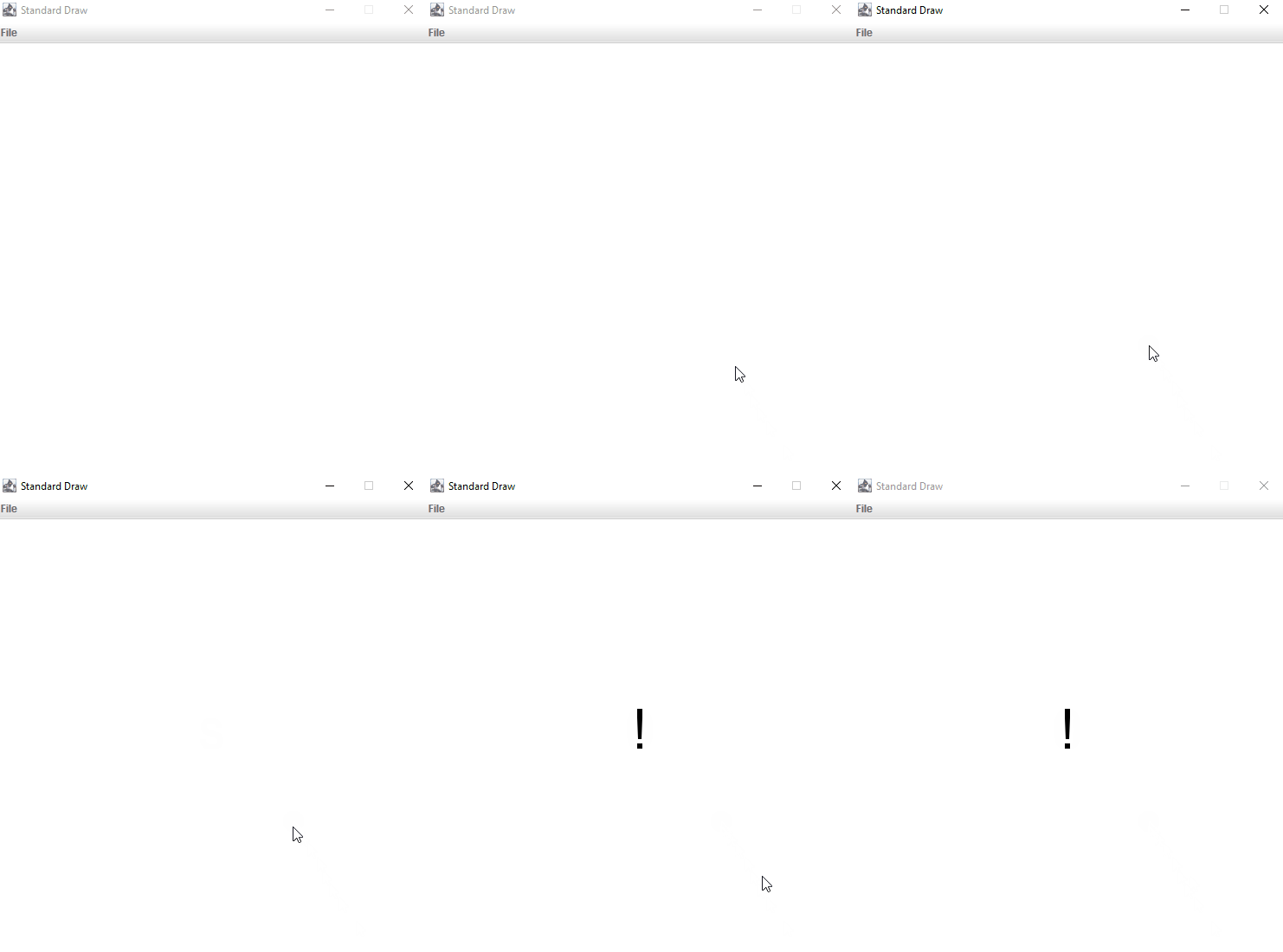
Some notes:
- You will need to click on the canvas once before pressing a key to focus the window, otherwise the letter will not appear. You do not need to code anything additional for this.
- Pressing Spacebar will clear the screen. This is not a feature you should need to implement separately—it arises naturally from the fact that the space character looks "blank."
- Make sure to delete any comments containing
TODOand add your own comments describing your code before submitting.
Program 2: Line Drawing Tool
Write a program that connects lines between the last place the mouse was clicked and the most recent place the mouse was clicked. You can find the starter file in your Codio, called line_drawing_tool.py.
The canvas will be blank until the first mouse click. The first line should be drawn from the center of the screen to the most recent mouse click. If the mouse is clicked in the top half of the screen, draw the line in red. If the mouse is clicked in the bottom half of the screen, draw the line in black.
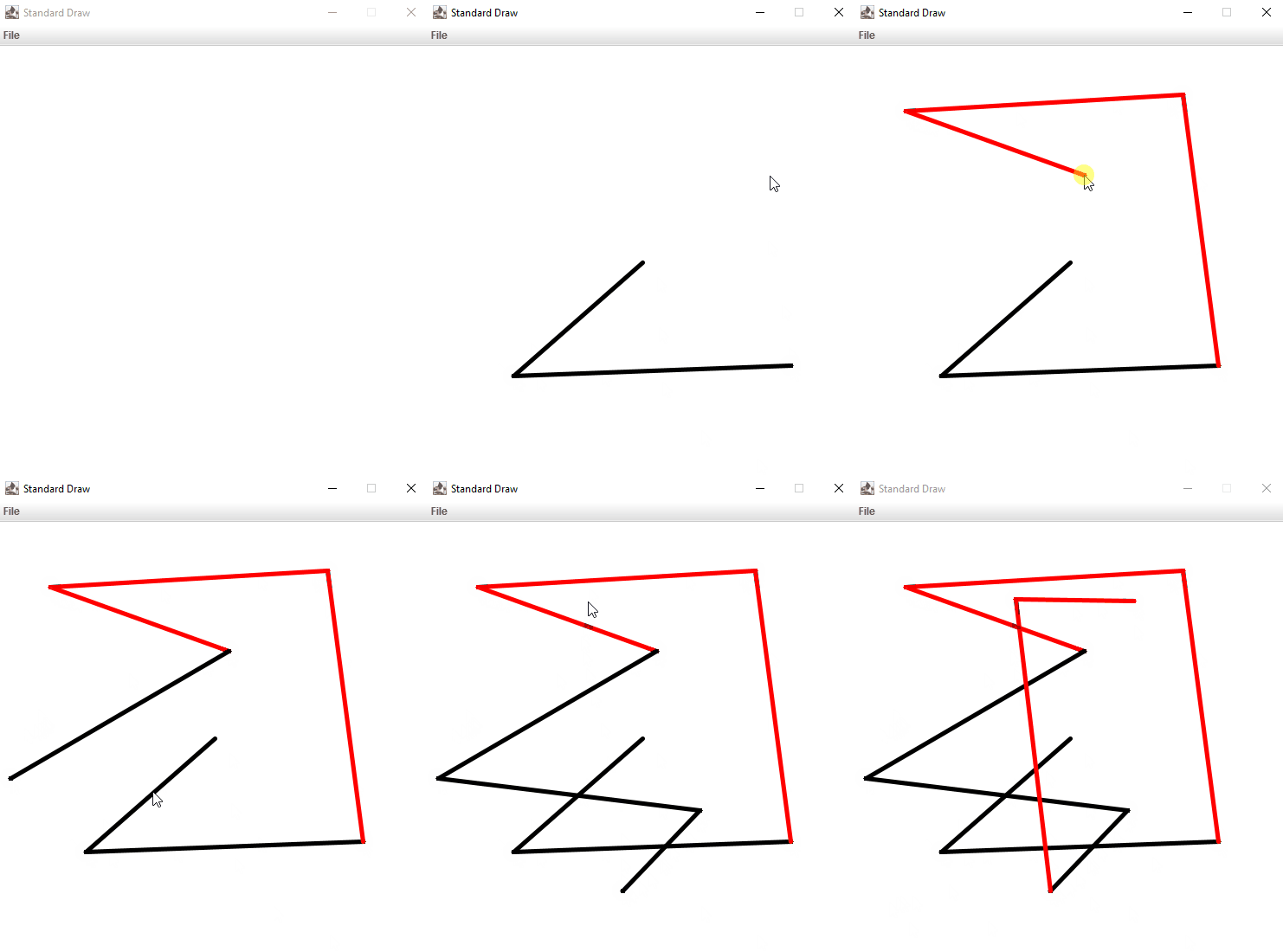
Some notes:
- The pen radius should be set to
0.01to make it easy to see. - Don't worry about the behavior when the user clicks and drags the mouse. Assume that the user will click without holding down the mouse button.
- Make sure to delete any comments containing
TODOand add your own comments describing your code before submitting.
Program 3: Rivalry
Program Overview
You will write a program rivalry.py that visualizes a race between two contestants.
As you are well aware, Princeton is one of Penn's main rivals. So for the example race, we used an image of the Penn pennant and an image of the Princeton pennant as the two racing rivals. In your program, you will choose two images that represent your own favorite pair of rivals. For example, you may want to use images of Nicki Minaj and Cardi B or Apple Music and Spotify. Once you choose your images, download them as png files and upload them to Codio (File -> Upload).
Here is an example of what the race will look like. Since the movement of the pennants is randomly controlled, the final state of the pennants in the image below is just an example; the result will be different each time the program is run.
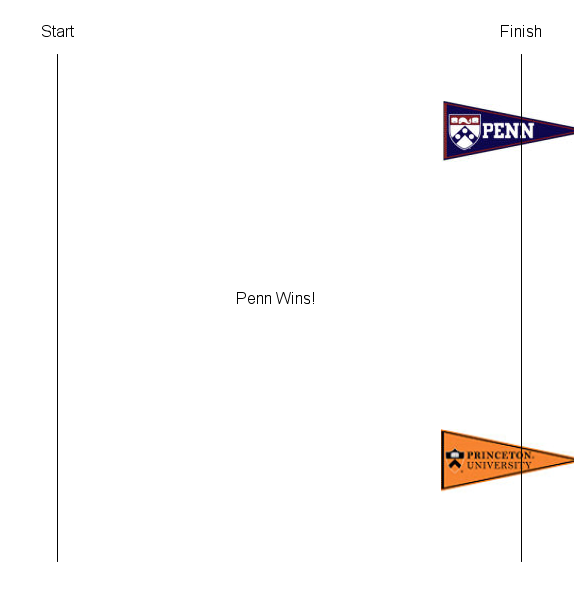
Program Setup
The skeleton code for rivalry.py has the word TODO in places where we want you to fill things in. Once you complete the TODOs, you should delete these comments and add your own comments to describe the functionality of your code.
Use the specifications from below, along with the skeleton code, to create the race between your rivals. Always write code in small steps. Run the program after each step. Do not move on to another task in the program until you are sure your current code is working.
Rivalry Specifications
Your program must follow the specifications below. Anything not specifically outlined is up to you to decide.
- It should have a start line, drawn far enough from the window edges so that your rival images can start behind the start line and still be fully within the window bounds. You should also have a finish line following the same rules.
- Your two images should be no larger than 150 x 150 pixels. Refer to PennDraw documentation for
pd.picture()to see how to draw images and change their sizes. - Within each loop iteration, you'll make a random choice for how many steps forward each contestant should take. A "step"
- For the stronger contestant, use
random.randint()to model the roll of a six-sided die. Whatever value is generated (1, 2, 3, 4, 5, or 6), have the contestant take that many steps forward. Each outcome should be equally likely. - For the weaker contestant, simulate a separate die roll and have that contestant take one less than the rolled number of steps forward. (If you roll a 1, move 0 steps. If you roll a 2, move 1 step. If you roll a 3, move 2 steps. And so on.)
- For the stronger contestant, use
- A contestant wins the moment the center of its image has crossed the finish line on the right side of the screen.
- As soon as one of the contestants wins, the animation should stop, and your program should draw text on the canvas indicating which contestant won.
- In the case of a tie, the stronger contestant is declared the winner.
- You are welcome to make the background as fancy or as simple as you'd like. Your race does not need to look exactly like the sample shown above.
- Remember, the PennDraw wiki will be helpful.
Readme
readme_rivalry.txt is included in Codio, or you can download it here. Open it in Codio, and answer the questions.
Extra Credit?
We offer a very small amount of extra credit in CIS 1100 to give you the opportunity to show that you really know your stuff! The purpose of extra credit is not to dramatically alter your score; in fact, although this assignment's Extra Credit is a very challenging extension of the base assignment, you can only earn at most 1 point. You can find details about Extra Credit components by following this link.
Project Submission
Submit your homework under HW01: Rivalry on Gradescope. You need to upload rivalry.py, letter_viewer.py, line_drawing_tool.py, readme_rivalry.txt, and any and all images you used in Rivalry.
All program file names should match the required names exactly, including capitalization. If you download the files from Codio multiple times, you may notice that they end up having numbers appended to the end, e.g. rivalry (3).py. You will need to remove these numbers.
Again, you must submit all image files you used in your programs exactly with the exact file names as they appear saved in your HW01 folder.
Your solution to the project portion of this assignment is due to Gradescope by Mon, Sep 14 at 11:59 pm.
Presentation
You will be required to meet with a TA for fifteen minutes outside of class to present your work on this assignment. Presentations for this assignment will take place on Wed, Sep 16 and Thu, Sep 17. Sign up for a presentation time slot TODO HERE TODO.
Code Walkthrough
You'll start the presentation with ten minutes spent on reviewing and discussing your project submission.
During the first few minutes of your presentation, you and your TA will go through the project code that you submitted. Your TA will mark your style score and other manually graded components of the assignment, and they will explain their marks to you as they go. There may be cases where they ask you to clarify or justify a choice you made, so make sure to run through your code briefly before your presentation.
Then, your TA will ask you one or two questions about the behavior of your code to judge your understanding. For HW1: Rivalry, we'll select two questions and you'll need to be able to answer one of them correctly to receive full credit. Here are three examples of questions we might ask, although this list is not exhaustive:
- How would you modify the Rivalry program so that the contestants moved from right to left instead?
- Which element(s) of your Rivalry program affect how quickly the contestants move across the screen? What would you change to make them move faster or slower?
- Imagine that I wanted to extend the Rivalry program to include a third contestant. What would I need to add and modify in that case?
This part of the presentation will look a bit different in each assignment, and we will not always be so detailed about the questions we will ask.
Practice Question
During the next five minutes of the presentation, you'll be given a variant of a question from the PrairieLearn Practice portion of this assignment and asked to solve it. You're able to practice as much as you want by repeating the questions in PrairieLearn before this presentation with a TA. For some questions, you may be expected to briefly explain your reasoning or show your work, so be prepared to talk about what you do.
You will not have access to any resources during this part of the presentation. In many cases, you will be asked to solve the problem on a board or on paper rather than with a computer.
Grading
The grading rubric required to achieve each criterion will be different for each question, but the way that we approximately convert answers to points is displayed in the following scheme. Note that answers need not be perfectly correct to receive a high score on this portion of the presentation.
| Criterion | Grade for Question |
|---|---|
| Fully correct answer with ability to justify | A+ |
| Partially correct answer with a reasonable approach and the ability to justify | A |
| Mostly incorrect/incomplete answer with ability to reason aloud about the steps taken | B |
| Mostly incorrect/incomplete answer with partial ability to reason aloud about the steps taken | B- |
| Incorrect or incomplete answers with no reasonable justification | Participation credit only |